
In the modern business landscape, managing internal team tasks while simultaneously tracking customer requests can quickly become overwhelming. Without the right system in place, support tickets get lost in email threads, and team members waste valuable time switching between different applications. To solve this problem, businesses are turning to integrated solutions. Implementing a Work OS with client portal provides a centralized hub for both internal operations and external communication.
The primary goal of this comprehensive guide is to introduce you to Cubicl, an advanced work management tool designed to streamline your workflows. By utilizing Cubicl as your primary Work OS with client portal, you can automatically collect and track complaints, problems, requests, and suggestions directly from your customers. This seamless interface ensures that your team remains highly productive, and your customers receive the prompt support they deserve.

Defining Key Concepts: What is a Client Portal?
Before diving into the specific functionalities, it is important to establish clear definitions of key concepts.
- Client Portal: A client portal is a secure, digital gateway specific to your organization where your clients can contact you. It allows customers to create their own user accounts, submit support requests, track the progress of their inquiries, and access shared files.
- Work OS (Work Operating System): A digital workspace that allows teams to assign tasks, monitor workloads, and execute project plans.
When you combine these two concepts into a Work OS with client portal, the cause-and-effect relationship is clear. Because you interact with clients without leaving the app, your internal team avoids the distraction of phone calls or scattered emails. Consequently, client satisfaction increases significantly.
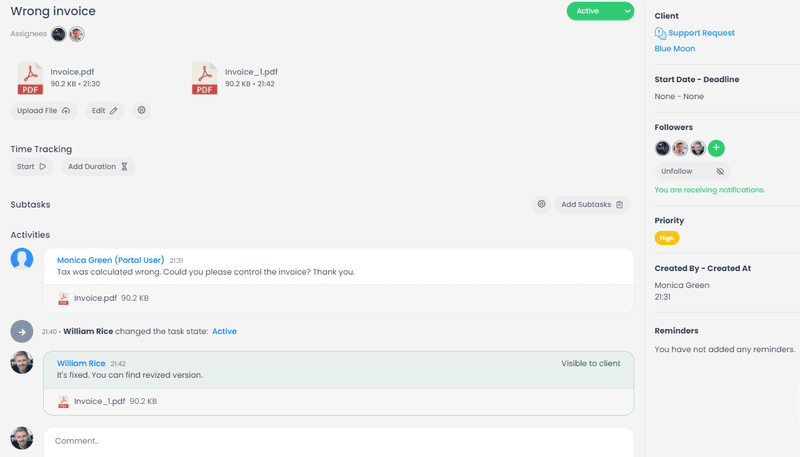
How Cubicl Work OS With Client Portal Enhances Customer Communication
To effectively communicate with your clients, Cubicl Work Management Software provides two distinct links that you can share. Each link serves a specific purpose in the customer onboarding and support process.
The Support Form Link
The Support Form Link is designed for quick, frictionless communication. You can provide this link directly to your clients or embed it as a button on your corporate website.
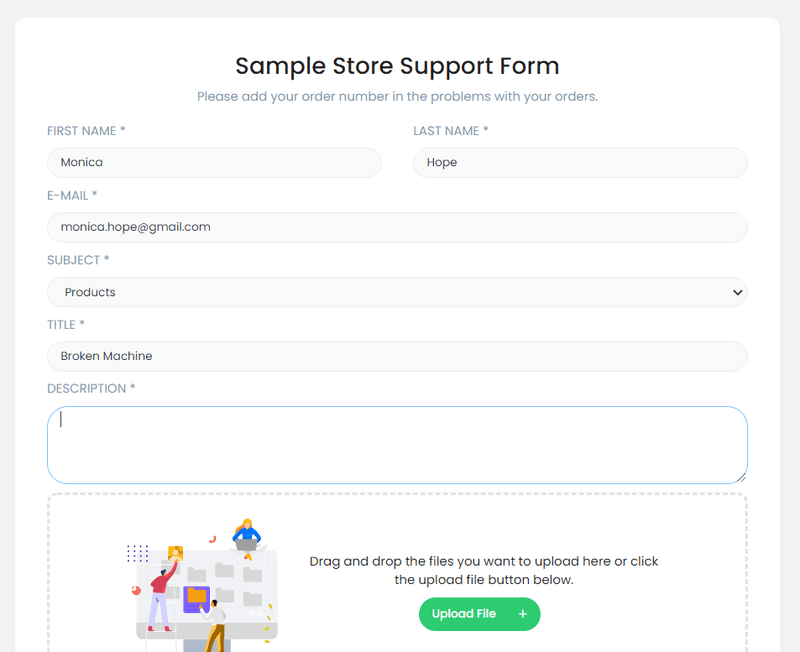
When clients click the link, they are directed to a public support form. Here is how the process flows:
- The client fills out the form with their name, surname, e-mail, subject, title, description, and any relevant files.
- They do not need to create an account or register to submit this form.
- Once submitted, this support request is automatically created as a task in the related project within Cubicl.
- Assignees or project admins receive an immediate notification regarding the new submission.
Because an ID number is added to this task, tracking is incredibly straightforward. You can write a reply directly within Cubicl. When you reply, an e-mail is sent to the client. By clicking the link in the e-mail, the client can read your answers and reply back. Therefore, all support requests are saved, responsibilities are clearly defined, and nothing is forgotten.
The Portal Link
While the Support Form is ideal for one-off inquiries, the Portal Link is designed for ongoing, long-term collaboration.
By sharing the Portal Link, you invite your clients to create a formal user account on your Client Portal. Once logged in, the client is presented with a dashboard where they can:
- View tasks and files shared by your organization.
- See the exact states of the tasks you are collaborating on.
- Follow or unfollow specific tasks based on their preferences.
- Access historical bookkeeping records related to their account.
When a client performs an activity on the portal, notifications drop directly into your Cubicl account. As a result, your support team can answer the client quickly, ensuring projects are completed on time through transparent communication.

Configuring Your Portal Settings for Maximum Efficiency
To ensure a smooth user experience, administrators must configure the portal settings to align with their organizational structure. By default, the public support status is turned off. If you want to communicate with your clients via Cubicl Work Management Platform, you must first enable this feature in the settings interface.
Organizing Support Topics and Managers in Work OS with Client Portal
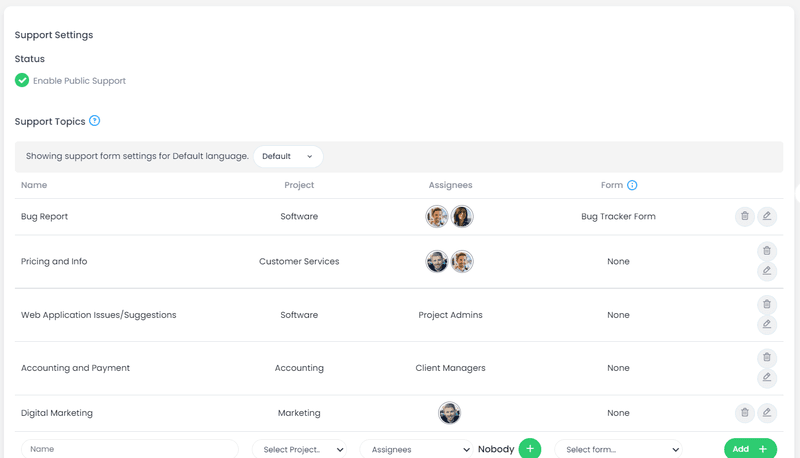
Different inquiries require the attention of different departments. Cubicl allows you to set up specific Support Topics. For example, your Sales team can handle the "Sales" topic, while your Accounting team deals with "Invoices."
When configuring these topics, you can define three types of managers:
- Assignees: Specific users assigned directly to the support topic. They automatically receive notifications for incoming requests.
- Project Admins: The overarching managers of the project selected for the support topic.
- Client Managers: Dedicated personnel responsible for specific clients.
If a Client Manager is not designated for a specific client, notifications will default to General Client Managers. This strict hierarchy ensures that every request is routed to the correct person instantly.
Enhancing Data Collection with Forms
Sometimes, a standard support request requires more specific information. From the Forms page in Cubicl Work Management Tool, you can create customized templates such as a Bug Tracking Form for software issues or a Visual Media Request Form for agency work.
Once created, you can attach these forms to your Support Topics. When a client selects that specific topic, the customized questions appear in the "Additional Informations" field. This automation ensures your team gathers all necessary data upfront, eliminating time-consuming back-and-forth emails.
Establishing Brand Trust with Custom Domains and UI
Maintaining a professional image is vital for enterprise customers and small businesses alike. Cubicl empowers you to customize your portal so it feels like a natural extension of your brand.
Implementing a Custom Domain in Work OS with Client Portal
Custom domains allow you to serve your support form under your own domain name. Instead of a generic URL, your clients can visit a subdomain like portal.my-company.com.
To set this up, your IT team simply needs to create a new DNS CNAME record in your domain service provider's panel. Once the record is verified in the Cubicl settings, your portal links will automatically update. This functionality builds immediate trust with your users.
Customizing the User Interface
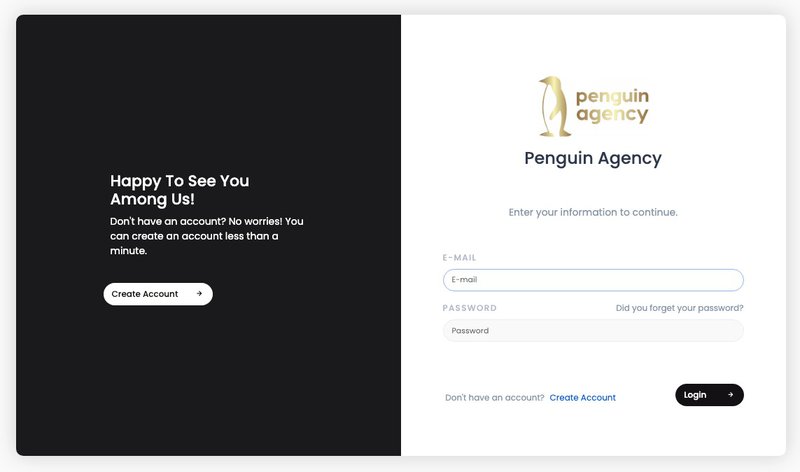
Beyond the URL, the visual interface of the login and register pages is fully customizable. Using the Customization Interface, you can:
- Change the background image or color.
- Modify the left panel design.
- Adjust button styles and fonts.
- Upload your company Favicon so your logo appears in the browser tab.
- Update the Page Title to reflect your organization's name.
Furthermore, you can utilize the Page Links field to add specific URLs to the bottom of the login page. This is the perfect place to link to your privacy policy or primary corporate website.
Beyond the Portal: The Core Features of Cubicl
While serving as an exceptional Work OS with client portal, Cubicl Work OS also provides a robust suite of internal task management tools. From the moment you create an organization account and invite your team members via email, you gain access to powerful functionality.
Here is a breakdown of the core features that drive team productivity:
| Task Management | Assign tasks and monitor workflow using a visual Kanban board. | Ensures tasks are never forgotten and completed on time. |
|---|---|---|
| Gantt Chart | Edit start dates and deadlines on a visual timeline. | Simplifies complex project planning and milestone tracking. |
| Client Management | A dedicated page to track deals, notes, and activities related to clients. | Keeps all customer relationship data in one centralized, up-to-date location. |
| Team Chat | A built-in chat box for announcements and file sharing. | Eliminates the need for external messaging apps, keeping communication contextual. |
| Workflows | Tools to create sequential and interrelated tasks. | Automates routine processes, reducing manual administrative work. |
| Email Boxes | Connect business emails (e.g., support@mycompany.com) directly to Cubicl. | Converts incoming emails into actionable tasks seamlessly. |
Additionally, Cubicl allows you to integrate seamlessly with other essential tools like Google Drive, Google Calendar, and Slack. You can also utilize the Time Offs feature to manage team availability, ensuring project timelines remain realistic.
The Best Work OS With Client Portal
In conclusion, relying on disjointed software to manage your team and your clients is an outdated strategy. A unified approach is the only way to scale effectively. By adopting a comprehensive Work OS with client portal, you empower your organization to handle internal projects and external support requests from a single, intuitive interface.
Cubicl provides all the tools necessary to make this transition smooth. From sharing a simple support form link to configuring a fully customized domain for your most valuable clients, the platform is built to handle your unique workflow. By bringing your team communication, project planning, and client management together, Cubicl eliminates the friction of daily operations. Create your account today, start your free demo, and experience the future of streamlined work management.